
- INTERNET
-
-
- Internet Services

Fixed Wireless Speeds up to 10 Gbps. Internet via a wireless connection between two fixed points. No construction required.
Fiber Internet Speeds up to 1 Tbps. Internet via a hard-line fiber connection direct to your location. Construction may be required.
SD-WAN Internet 5G Speeds up to 300 Mbps. Shipping Nationwide. Cellular internet with no setup or construction required. Just plug and play.
Satellite Internet High-speed satellite internet almost anywhere. Professionally installed, managed, and perfect as a backup connection.
Specializing In
Public Spaces One-stop shop for internet and Wi-Fi for Hotels, Private Clubs, Parks, Marinas, Airports, Districts, Community Centers and Conference Centers
Smart Districts Connected Wi-Fi, cameras and sensors that power a whole downtown district.
Commercial Multi Dwelling Units Do you own a mixed-use property with multiple units? Offer internet to your tenants and create a new revenue source.
Temporary Connections Need internet for a short period of time? Special Events, Construction Sites, Concerts, Conferences, Trade Shows, TV and movie production, media and press events.
Detroit Wi-Fi Initiative Bringing Wi-Fi to Detroiters for free.
-
-
- CLOUD
-
-
- Phone Service
VoIP Phone System Hosted business phones with auto attendant, voicemail-to-email and mobile apps.
POTS Line Replacement Replace copper phone lines for fire alarms, elevators and fax with managed cellular.
Managed Services Managed Wi-Fi We design, monitor and manage your Wi-Fi 24/7, including guest splash pages.
Managed Firewall Managed firewall, content filtering and threat protection for every site.
Multi-WAN Router Combine fiber, fixed wireless and 5G with automatic failover so you never go offline.
Virtual MPLS A private, secure network linking all your locations over any internet connection.
Security Services Surveillance Monitor Security cameras with secure cloud recording and remote viewing, fully managed.
Zone Monitor People counting, live occupancy, dwell time and crowd alerts from your cameras.
Camera Time Lapse Live camera streams and time-lapse videos of your job site, event or venue, hosted in the cloud.
-
-
- INDUSTRIES
-
-
- Industries
Accounting & Legal Secure, private networks for accounting firms and law offices that protect client data.
Airports Secure, redundant networks for terminals, operations, parking and tenants.
Community & Nonprofits Affordable, reliable internet and Wi-Fi for community centers, churches and nonprofits.
Construction Fast job-site internet with fixed wireless, 5G and Wi-Fi suitcases. No waiting on wires.
Education Secure, high-capacity networks for schools, colleges and training centers.
Financial Services Redundant, compliant connectivity for banks, credit unions and financial advisors.
Government Redundant, secure connectivity for city, county and public-safety agencies.
Healthcare & Dental Secure internet for medical practices, dental offices, clinics and senior living.
Hospitality Guest Wi-Fi for hotels, banquet facilities, private clubs and resorts.
Manufacturing Always-on connectivity for plants, warehouses and industrial IoT.
Parking Pay stations, gates, cameras and call boxes for surface lots and garages.
Private Clubs Member-grade Wi-Fi for country, golf, yacht and athletic clubs.
Real Estate Internet and Wi-Fi for brokerages, property managers and buildings across Detroit.
Restaurants Reliable internet and guest Wi-Fi that keeps your POS and online orders running.
Retail Dependable Wi-Fi and backup internet that keep stores and checkout lines moving.
Stadiums & Large Venues High-density Wi-Fi for stadiums, arenas, festivals and major events.
Transportation & Logistics Connectivity for fleets, depots, parking, airports and logistics hubs.
Utilities Resilient networks for utility sites, substations and field operations.
-
-
- COMPANY
-
-
- Company
Our Mission Better internet for all. Trusted since 2008, we have been in business for more than a decade.
Community Engagement How we give back: public Wi-Fi, Project Green Light, local partnerships and Detroit community projects.
Success Stories Customer testimonials and case studies: "Hands down one of the best internet service companies in the state".
Owners & Developers Increase rental retention and property value, and create another revenue source.

Live Camera Feeds Live camera feeds from our webcams around town.
Careers Join our growing team. We are laser-focused on building the internet company of the future.
Policies Billing, privacy and text messaging policies.
Press Cronus in the news: Greektown, Detroit park Wi-Fi and more.
Media Kit Cronus logos, brand colors and usage guidelines.
Contact Us We would love to talk.
-
-



















- INTERNET
-
-
- Internet Services
Fixed Wireless Speeds up to 10 Gbps. Internet via a wireless connection between two fixed points. No construction required.
Fiber Internet Speeds up to 1 Tbps. Internet via a hard-line fiber connection direct to your location. Construction may be required.
SD-WAN Internet 5G Speeds up to 300 Mbps. Shipping Nationwide. Cellular internet with no setup or construction required. Just plug and play.
Satellite Internet High-speed satellite internet almost anywhere. Professionally installed, managed, and perfect as a backup connection.
Specializing In
Public Spaces One-stop shop for internet and Wi-Fi for Hotels, Private Clubs, Parks, Marinas, Airports, Districts, Community Centers and Conference Centers
Smart Districts Connected Wi-Fi, cameras and sensors that power a whole downtown district.
Commercial Multi Dwelling Units Do you own a mixed-use property with multiple units? Offer internet to your tenants and create a new revenue source.
Temporary Connections Need internet for a short period of time? Special Events, Construction Sites, Concerts, Conferences, Trade Shows, TV and movie production, media and press events.
Detroit Wi-Fi Initiative Bringing Wi-Fi to Detroiters for free.
-
-
- CLOUD
-
-
- Phone Service
VoIP Phone System Hosted business phones with auto attendant, voicemail-to-email and mobile apps.
POTS Line Replacement Replace copper phone lines for fire alarms, elevators and fax with managed cellular.
Managed Services Managed Wi-Fi We design, monitor and manage your Wi-Fi 24/7, including guest splash pages.
Managed Firewall Managed firewall, content filtering and threat protection for every site.
Multi-WAN Router Combine fiber, fixed wireless and 5G with automatic failover so you never go offline.
Virtual MPLS A private, secure network linking all your locations over any internet connection.
Security Services Surveillance Monitor Security cameras with secure cloud recording and remote viewing, fully managed.
Zone Monitor People counting, live occupancy, dwell time and crowd alerts from your cameras.
Camera Time Lapse Live camera streams and time-lapse videos of your job site, event or venue, hosted in the cloud.
-
-
- INDUSTRIES
-
-
- Industries
Accounting & Legal Secure, private networks for accounting firms and law offices that protect client data.
Airports Secure, redundant networks for terminals, operations, parking and tenants.
Community & Nonprofits Affordable, reliable internet and Wi-Fi for community centers, churches and nonprofits.
Construction Fast job-site internet with fixed wireless, 5G and Wi-Fi suitcases. No waiting on wires.
Education Secure, high-capacity networks for schools, colleges and training centers.
Financial Services Redundant, compliant connectivity for banks, credit unions and financial advisors.
Government Redundant, secure connectivity for city, county and public-safety agencies.
Healthcare & Dental Secure internet for medical practices, dental offices, clinics and senior living.
Hospitality Guest Wi-Fi for hotels, banquet facilities, private clubs and resorts.
Manufacturing Always-on connectivity for plants, warehouses and industrial IoT.
Parking Pay stations, gates, cameras and call boxes for surface lots and garages.
Private Clubs Member-grade Wi-Fi for country, golf, yacht and athletic clubs.
Real Estate Internet and Wi-Fi for brokerages, property managers and buildings across Detroit.
Restaurants Reliable internet and guest Wi-Fi that keeps your POS and online orders running.
Retail Dependable Wi-Fi and backup internet that keep stores and checkout lines moving.
Stadiums & Large Venues High-density Wi-Fi for stadiums, arenas, festivals and major events.
Transportation & Logistics Connectivity for fleets, depots, parking, airports and logistics hubs.
Utilities Resilient networks for utility sites, substations and field operations.
-
-
- COMPANY
-
-
- Company
Our Mission Better internet for all. Trusted since 2008, we have been in business for more than a decade.
Community Engagement How we give back: public Wi-Fi, Project Green Light, local partnerships and Detroit community projects.
Success Stories Customer testimonials and case studies: "Hands down one of the best internet service companies in the state".
Owners & Developers Increase rental retention and property value, and create another revenue source.
Live Camera Feeds Live camera feeds from our webcams around town.
Careers Join our growing team. We are laser-focused on building the internet company of the future.
Policies Billing, privacy and text messaging policies.
Press Cronus in the news: Greektown, Detroit park Wi-Fi and more.
Media Kit Cronus logos, brand colors and usage guidelines.
Contact Us We would love to talk.
-
-
Advanced Network
Cronus has the most stable and reliable network in Detroit.

Rock Solid Reliability
We pride ourselves in our relentless pursuit of Multi Fail-overs

24/7 Monitoring
We monitor all our customers to make sure everything is working at all times.
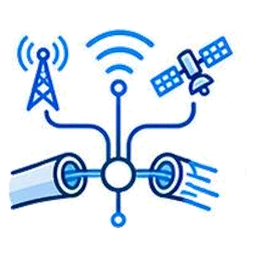
True Network Diversity
Cronus has the most stable and reliable network in Detroit.


